
Getting your Trinity Audio player ready... |
By default, there are no Key Events or Conversion Reports in Google Analytics 4 (GA4), which makes it difficult to view the most important events you are tracking. However, you can set up a Key Event as a custom “Detail Report” and then add this to your GA4 dashboard in each account you manage.
Where Did the GA4 Key Events Report Go?
The default key events report was removed from GA4 as part of conversions being renamed to key events in March 2024. This was to consolidate all events into one report; however, this makes it harder to see the most important metrics for your website. Thankfully, GA4’s dashboard is very customizable, and you can add a custom Key Event detail report back to your GA4 account.
How to Add a Key Events Report to Your GA4 Dashboard
Follow the steps below to create a custom, detailed report that shows key events, and then add it to your GA4 dashboard via the Library Collection editor.
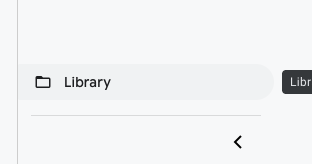
Go to Reports > Library
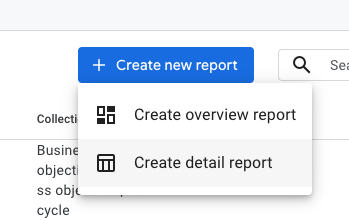
Click the “create new report”, Then Click “Create detail report”
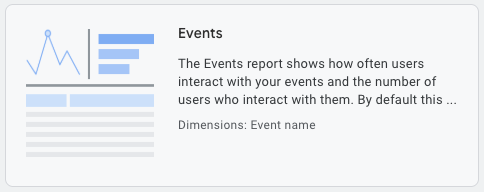
Click the “Events” Rectangle Button
Click the “Add filter” on The Right
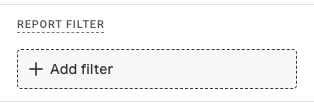
Set Up the Filter to Track Key Events or Other Things You Want It to Show
The point of this article is about filtering for key events, so follow the settings below to create the key events report but note that you could use this same process to create other custom detail reports.
Settings for Key Event Detail Report
- Dimension = Is key event
- Match Type = exactly matches
- Value = true
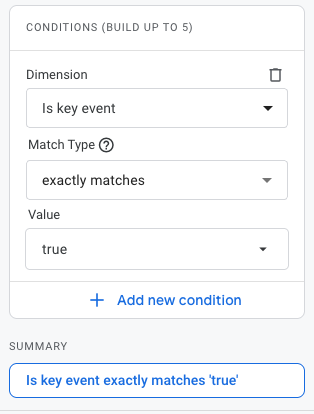
Click Apply in the Bottom Right Corner
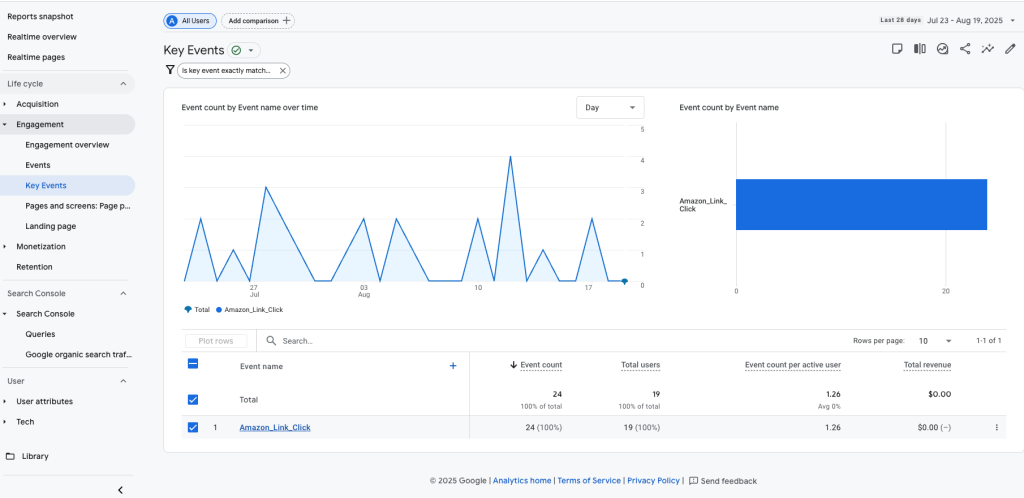
This will now show only key events in your report.

Then Click Save in the Top Right Corner
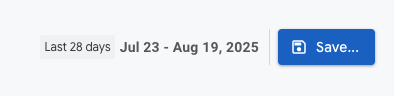
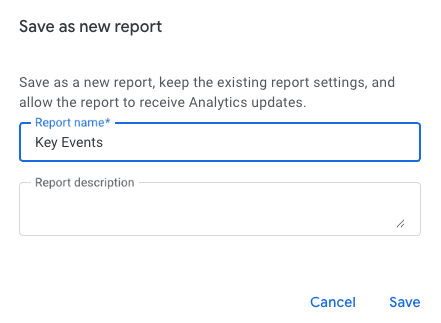
Then name the report Key Events
You could name it whatever name you want it to be, but since the goal is to recreate the Key Events report, we will name it Key Events here. You can also a description if you find that helpful as well.
Click Back in the Top Left
Now that you have created the report, the following steps will be for adding it to the GA4 dashboard.
Choose Which Collection You Want Your Report to Be In
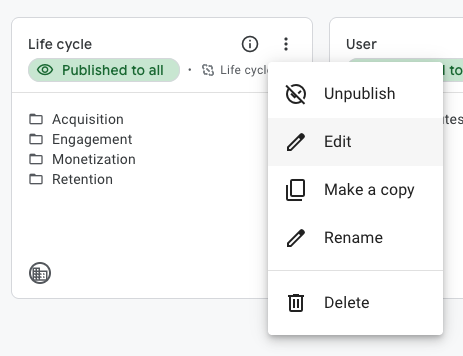
Click on the 3 dots > edit in the section of GA4 you want to add it to. I usually add this to the “Life cycle tab” since that is where Engagements are, which is where the existing events tab is kept.
Search for “Key Events”
Since we named the report Key Events, search for that here unless you named the report something else, then you need to search for that.
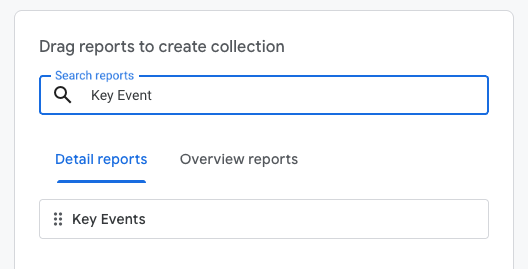
Drag Key Events Over From the Right to The Appropriate Section on The Left Side
Drag it over to the left and place it under the Engagement> Events report or wherever else you want the report to show up in GA4.

Click “Save” > “Save Changes to Current Collection” Under the Left Column
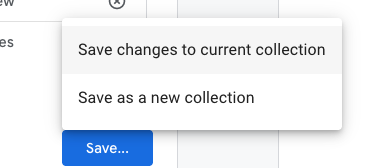
Your Key Event Report is Back!
You will now see the Key Events report in the left sidebar, which will show a report of only key events instead of all events.
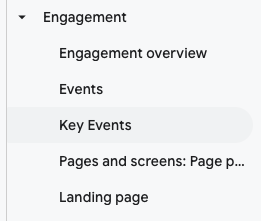
It should look like the following screenshot when you have completed the process of adding the back your key events report to your GA4 Account.
Next Steps for Your Site
Now that you can more easily see your key metrics, make sure you have tracking set up for the right events, which may require using Google Tag Manager (GTM) for tracking things like click-based events. Then, once you have the right tracking, you need to start conversion rate optimizing your site based on this data. Learn more about the 3 C’s of CRO—Confirmation, Credibility, and Clear Instructions—in this article.
If this article helped you, let me know in a comment below. Additionally, if you notice the screenshots or process is out of date, please let me know in a comment.


0 Comments